Open the creator
The creator runs inside Chili Platform. Games you make there save to your account.
1. Make an account
- Create an account on Chili Platform.
- Open the email we send you and verify your address.
Why verify?
You can open the creator before you verify, but saving a game, releasing it and listing it all need a verified email address. See Create an account and verify your email.
2. Open the creator
Sign in and choose Creator in the platform menu, or go straight to platform.chilichip.eu/creator.
The creator opens on Projects, the list of your games.
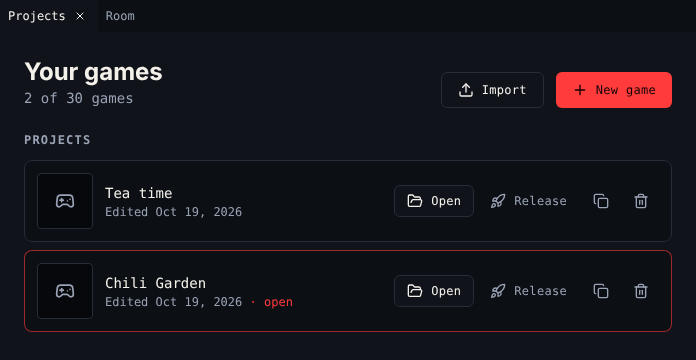
3. Start a game
| You want to | Do this |
|---|---|
| Start from scratch | Choose New game. You get one room with walls, the avatar, a cat that talks, a cup of tea and a key. |
| Keep working on a game | Choose Open on it. |
| Bring in a game from the Bitsy editor | Choose Import and pick a .bitsy file, or a web page exported from Bitsy (.html). It becomes a new game. |
| Try something without changing a game | Choose Duplicate (the copy icon) and open the copy. |
You can keep 30 games on your account, released ones included. When you reach 30, delete a project to start a new one.
How saving works
There is no save button. Every change saves to your account a moment after you make it.
The dot next to the game title shows the state:
| Dot | Means |
|---|---|
| Green, Saved | Your account has your latest change. |
| Amber, pulsing, Saving… | A change is on its way. |
| Red, with a message | The save failed. The creator tries again on your next change. |
If you try to leave the page while a change has not saved yet, the platform asks you first.
Keep your own copy
Use Download → Download .bitsy now and then. The .bitsy file is plain text, works in the Bitsy editor too, and you can Import it again any time. See Download.
Not signed in
When the creator cannot reach your account, it says Not signed in: games are saved in this browser only. Your games then live in this browser. Sign in on Chili Platform to keep them on your account.
Next
Find your way around in The workspace.