The workspace
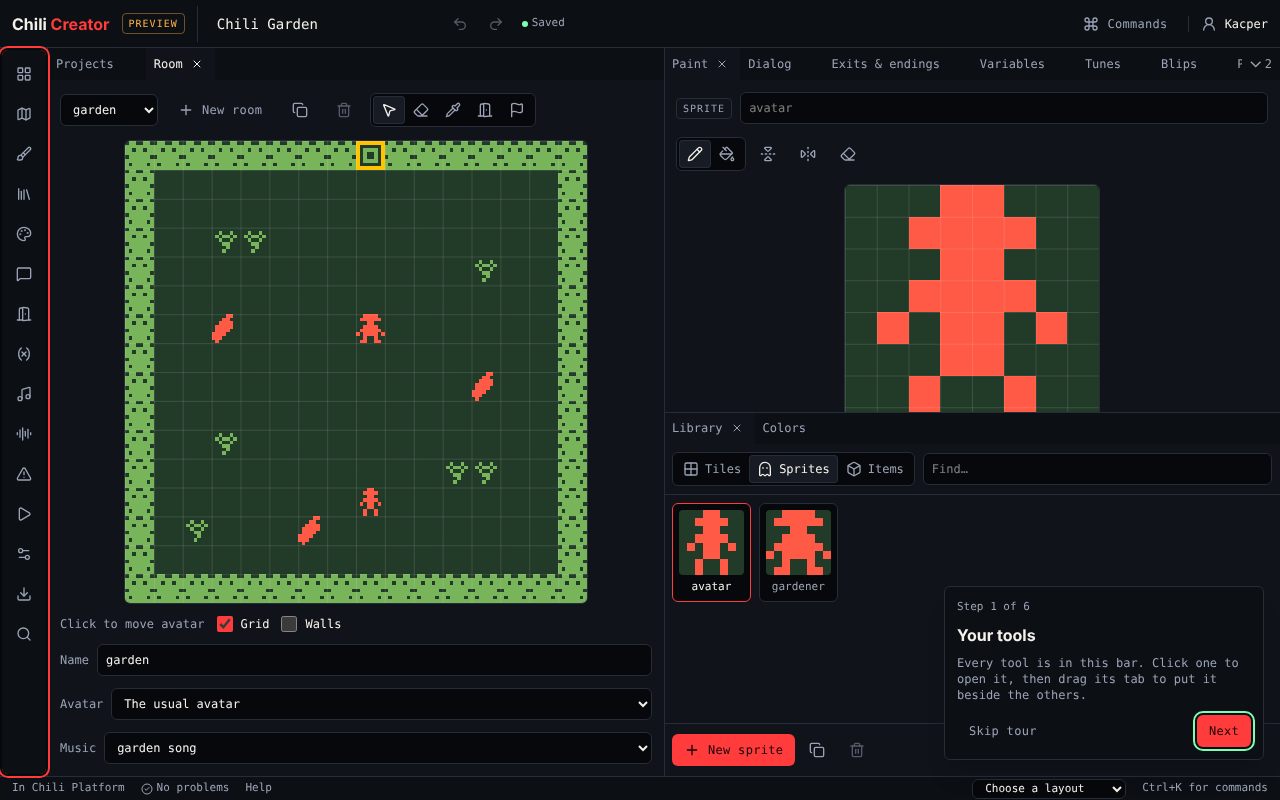
Everything in the creator is a tool: Room, Paint, Dialog, Play and so on. Tools open as tabs in a workspace that you arrange the way you like.
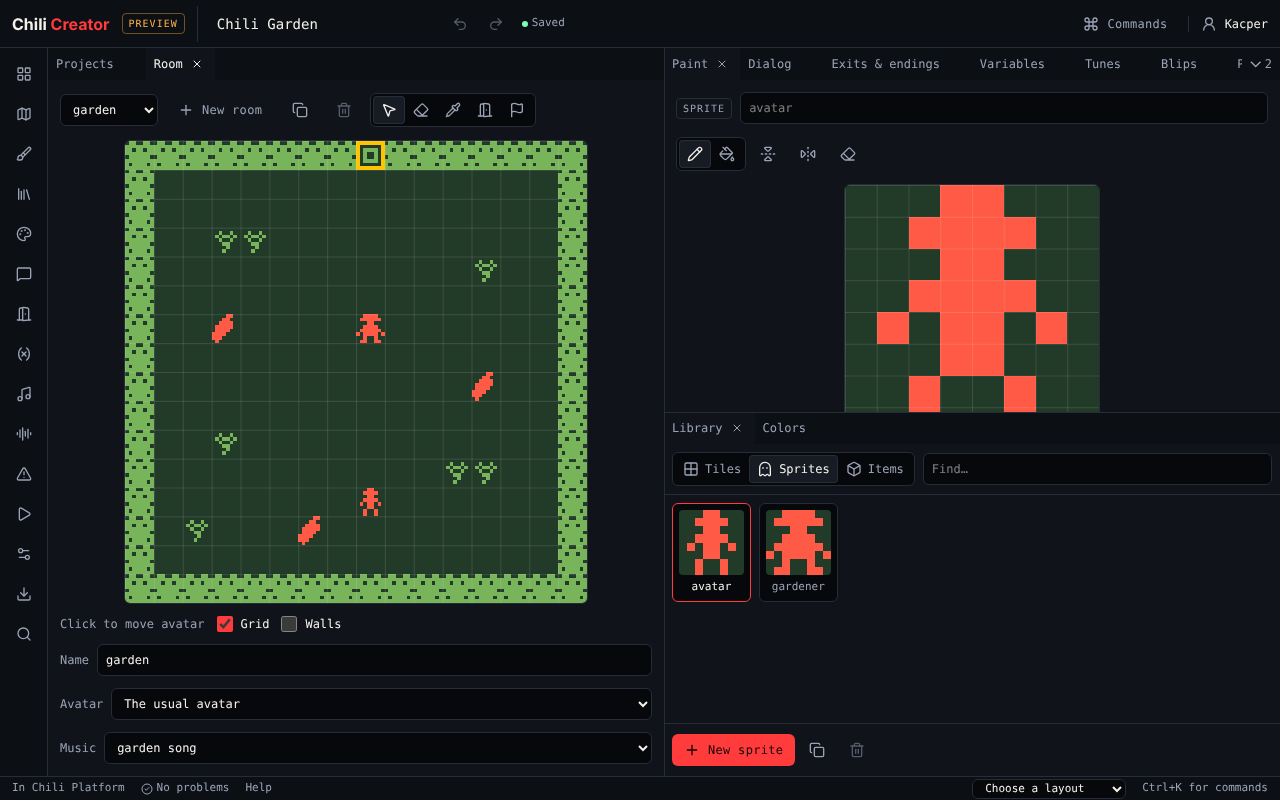
| Part | Where | What it does |
|---|---|---|
| Top bar | Top | The game's title (click to rename), Undo and Redo, the save state, Commands, and your account |
| Tool bar | Left edge | One button per tool. Click one to open it or bring it to the front. |
| Workspace | Middle | The open tools, as tabs in groups. Drag a tab to move it beside, above or below another group. Drag the line between groups to resize them. |
| Footer | Bottom | Whether you are in Chili Platform, the number of problems, Help, the Layout menu, and a reminder of Ctrl+K |
Your arrangement is remembered in this browser.
The tools
| Icon order | Tool | For |
|---|---|---|
| 1 | Projects | Your games: new, open, import, release |
| 2 | Room | Draw the room, place sprites and items, add exits and endings |
| 3 | Paint | Draw a tile, sprite or item, and animate it |
| 4 | Library | Every tile, sprite and item; pick one to paint or place |
| 5 | Colors | The palettes |
| 6 | Dialog | What sprites and items say |
| 7 | Exits & endings | Where exits lead, locks, transitions, ending text |
| 8 | Variables | Numbers and words the dialog remembers; starting items |
| 9 | Tunes | Music for rooms |
| 10 | Blips | Short sounds for sprites and items |
| 11 | Problems | Things that would break the game |
| 12 | Play | Play the game, record a GIF, set the cover |
| 13 | Game | Title, font, text direction and size, raw .bitsy text |
| 14 | Download | .bitsy file or a web page |
| 15 | Find | Search everything, see where a drawing is used |
Layouts
The Layout menu in the footer sets the tools up for one kind of work. Choosing one replaces the current arrangement.
| Layout | Opens |
|---|---|
| Everything | Every tool, where it opens by default |
| Drawing | Room, with Paint beside it and Library and Colors below Paint |
| Writing | Room, with Dialog, Exits & endings and Variables beside it, and Play below |
| Sound | Room, with Tunes and Blips beside it |
| Playtest | Play, with Room beside it and Problems below |
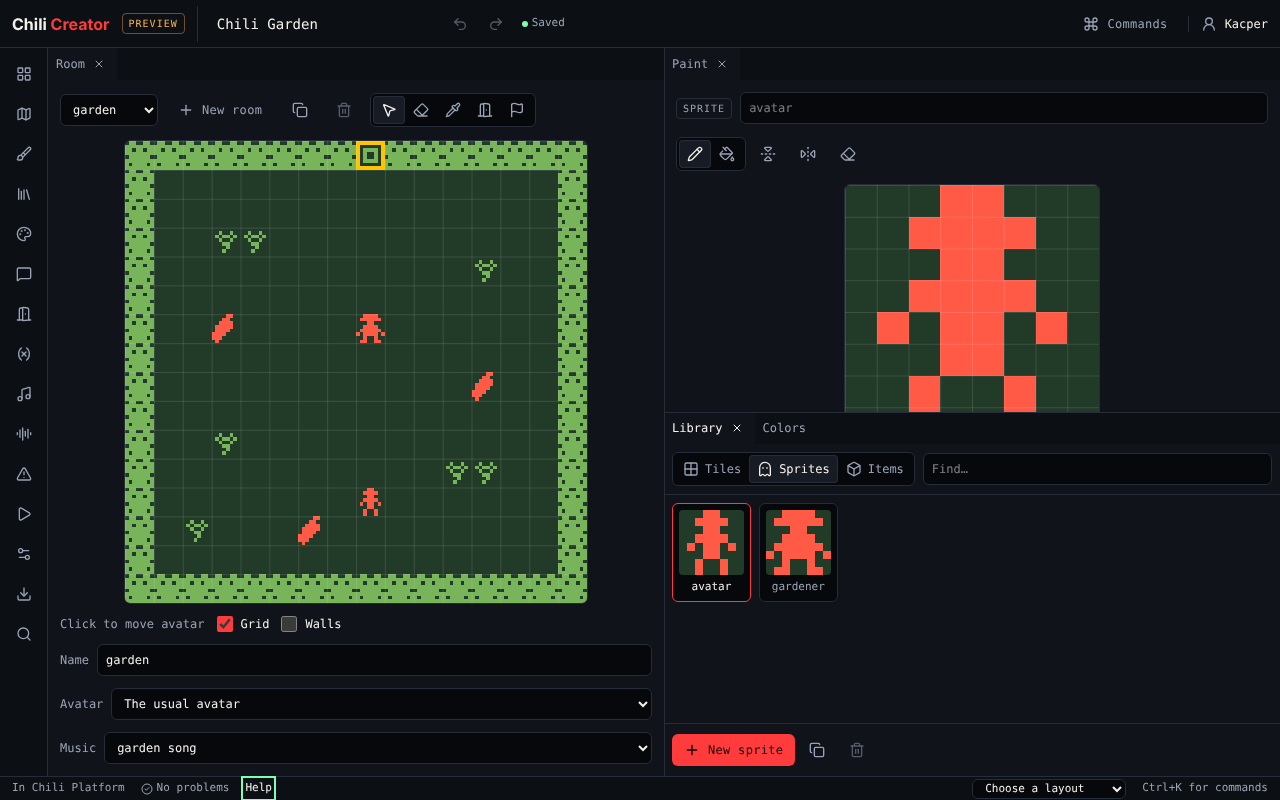
Reset layout in the command palette goes back to the default.
The command palette
Press Ctrl+K (Cmd+K on a Mac), or choose Commands in the top bar. Type a few letters and press Enter. Every tool, layout and editing command is there, with its key shortcut on the right.
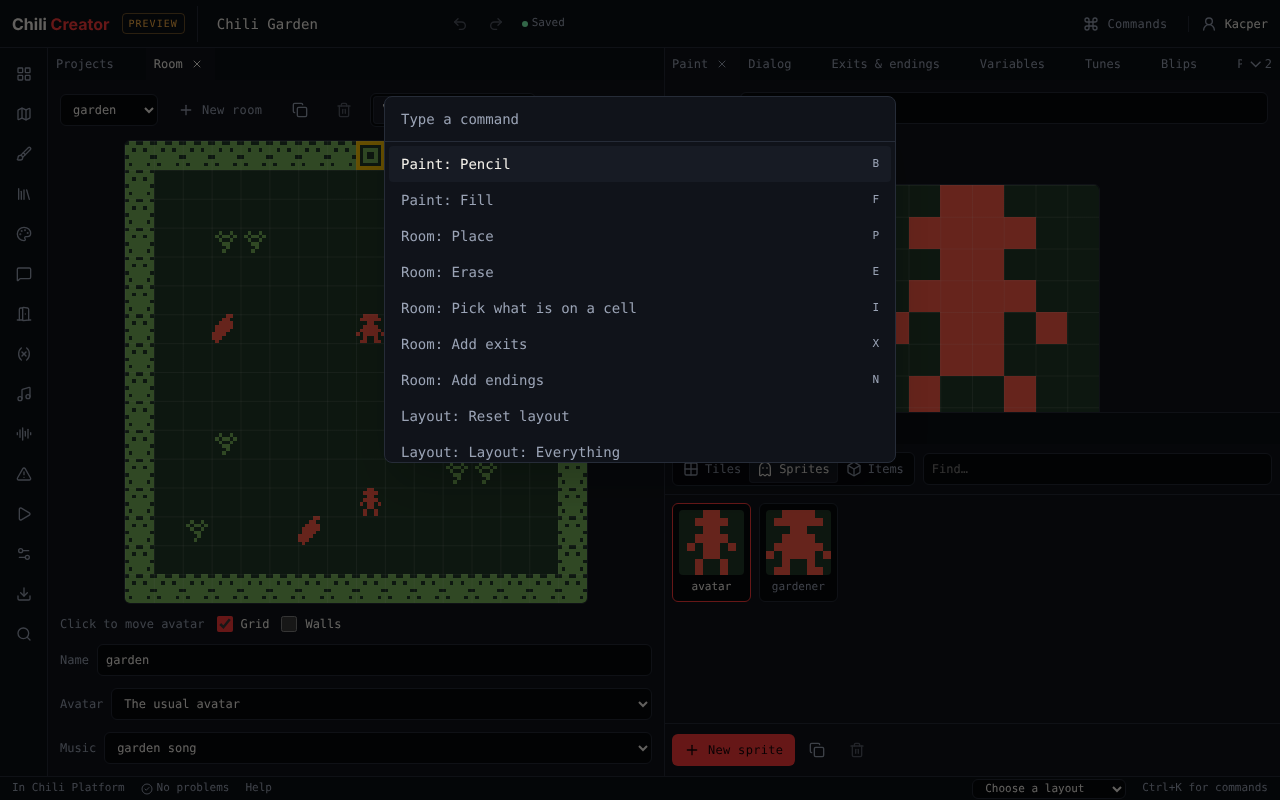
All shortcuts are listed in Keyboard shortcuts.
Undo and redo
Every change can be undone, in every tool: Ctrl+Z to undo, Ctrl+Shift+Z or Ctrl+Y to redo, or the arrows in the top bar. While you type in a text field, Ctrl+Z undoes your typing instead.
Help and the tour
Help in the footer lists every tool with one line on what it is for, an Open button and a Learn more link to its page here.
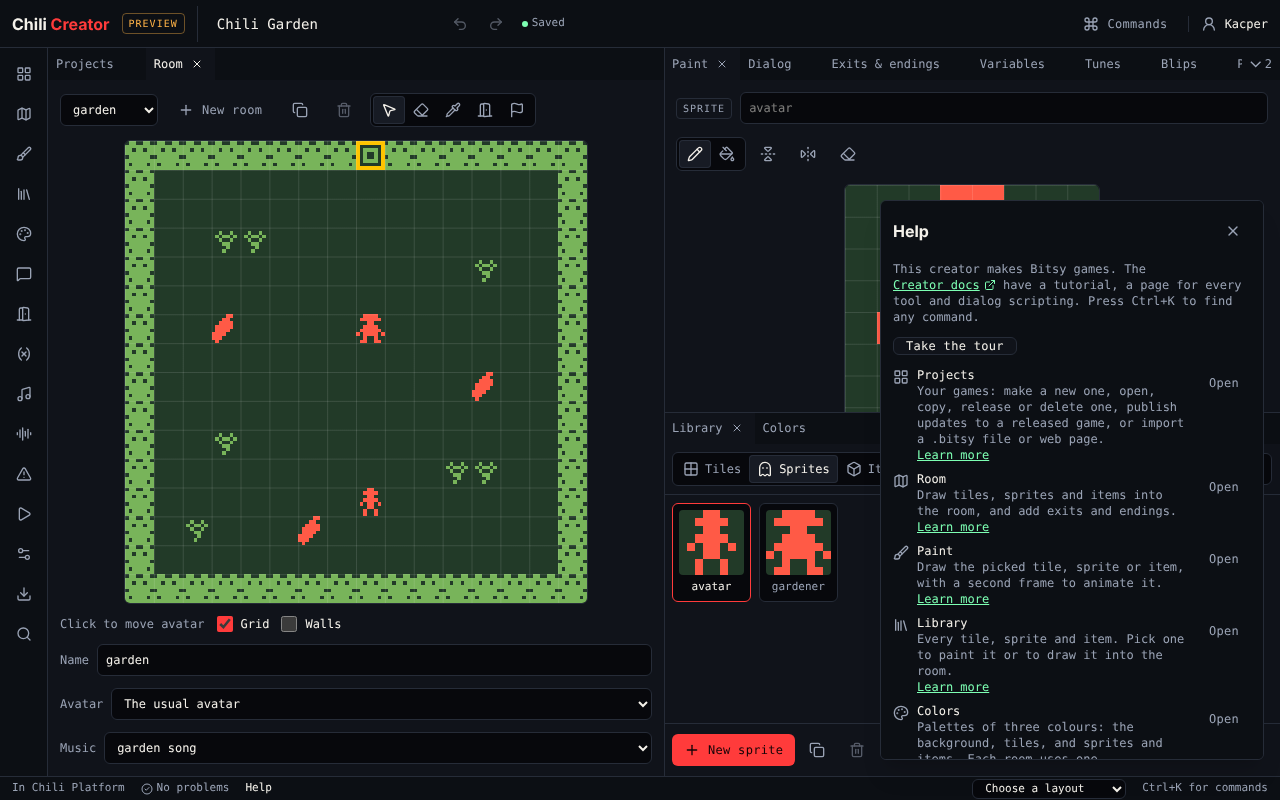
The first time you open the creator, a six-step tour shows the tool bar, Projects, Room, Paint, Play, and the commands and layouts. You can try each tool while the tour explains it. Skip tour closes it. Start it again with Take the tour in Help or in the command palette.
Next
On a phone? Read On a phone. Otherwise start the tutorial.